The 4-Hour Wedding Workflow: Cull, Edit, and Deliver Faster in 2026

Elli Kim Content
Thursday, May 21, 2026
AI can be a great time-saving tool for photographers, handling the mundane, laborious parts of the job and freeing up time for creative decision-making. That's the philosophy behind Narrative's AI assisted workflow.
And in 2026, it's what separates photographers who deliver fast and well from those who have to choose one or the other.
This guide walks you through a three-phase workflow that brings a 1,000-image wedding shoot from SD card to Lightroom delivery in roughly four hours.
In this article:
Step 1: Ingest and Cull without Lag
Instant Import
AI First Pass
Cull by Story with the Scenes View
Face Check at Scale with the Close-Ups Panel
Check Coverage by Person
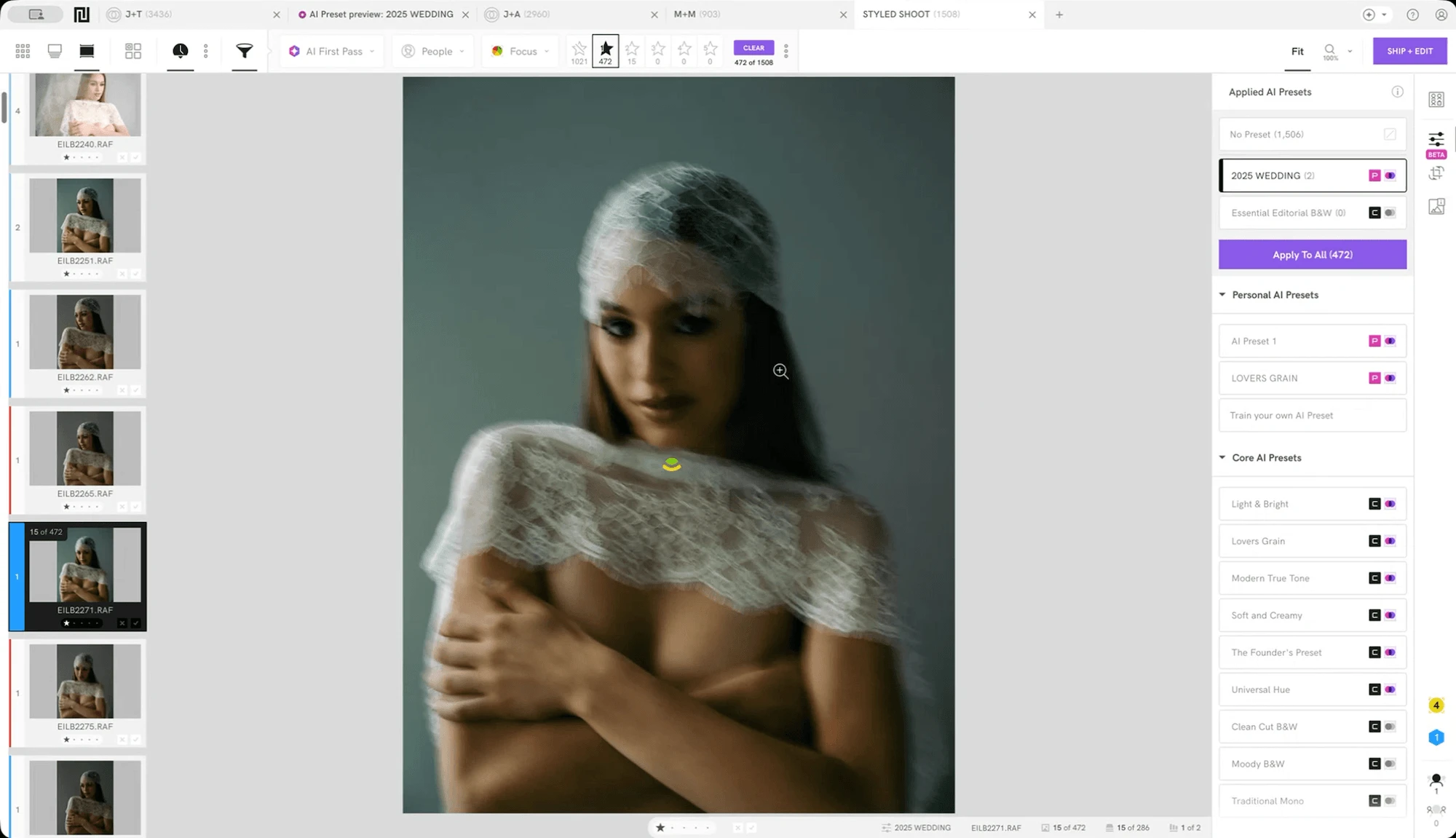
Step 2: Pre-edit with Your Personal AI Preset
Train on Your Own History
Why 'AI' Preset?
Step 3: Own the Final 10%
Worth Knowing
Is Narrative better than Aftershoot or Imagen AI?
Does Narrative work with Sony A7R V, Nikon Z9, and Fujifilm X-T5?
Can I use Narrative AI Presets offline?
Step 1: Ingest and Cull without Lag
Instant Import
The biggest problem with culling inside Lightroom is the wait. Smart Preview generation for a 2,000-image wedding can take longer than the reception dinner. Your creative momentum, the thread of visual memory you carry home from a shoot, frays a little every time you're staring at a loading spinner.
Narrative imports thousands of RAWs in seconds. You can ingest from SD cards and create backups simultaneously.
AI First Pass
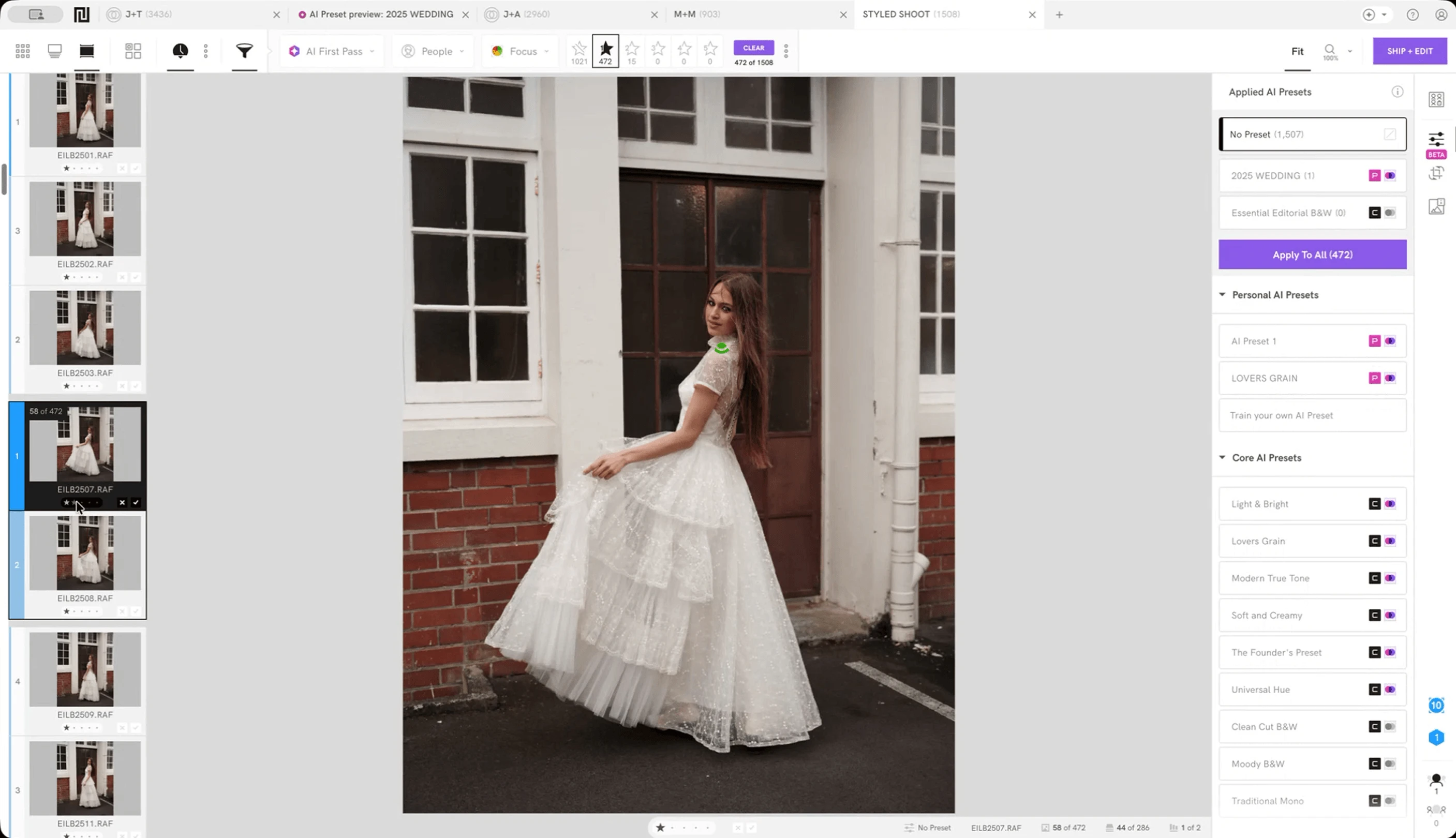
While that instant import is happening, Narrative's AI scans the entire shoot and assigns each image to one of five tiers. What you're left with is a culled set that required zero manual effort to produce. Your job is to disagree with the AI where it's wrong, not to review everything from scratch.
You can set the aggression level to Ruthless, Balanced, or Cautious. Most photographers running high-volume weddings find Balanced removes the obvious culls, including motion blur, duplicate test shots, and backs of heads, without touching anything ambiguous.
AI First Pass is available on Standard, Premium, and Ultra plans.
Cull by Story with the Scenes View
There's no creative value in fighting through 40 nearly identical frames of the ring bearer walking down the aisle. So don't.
Rather than presenting your shoot as a flat timeline, Narrative's Scenes View groups images by moment: ceremony, first dance, speeches, portraits. Each group is sorted into five ranked tiers based on AI assessments of focus, expression, and composition. You see the best candidates in a scene first, which means you're spending your decision-making energy on images that have already cleared a basic quality bar.
Why do it this way? So the AI isn't choosing for you; it's simply organising the room so you can walk straight to what matters.
Face Checks at Scale with the Close-Ups Panel
You know the dread of realising, only after delivering a gallery, that a beautifully composed group shot has two people mid-blink. The Close-Ups Panel exists specifically to prevent this.
The panel automatically surfaces face crops across your images, displaying up to 24 faces simultaneously with the AI prioritising the most prominent subjects first. Each face is evaluated for sharpness, expression, and eye state. A colour-coded system separates green (clear) from yellow (worth a second look) from orange or red (likely a problem).
Crucially, the AI understands context. A closed-eye moment during a first kiss reads differently from a blink during a posed family group, and the assessments reflect that distinction.
💡 If you're newer to AI-assisted culling, our guide to culling photos in Lightroom explains the foundational approach before you layer in automation.
Check Coverage by Person
Face quality is one problem. Coverage is another. You can have 40 technically perfect frames and still deliver a gallery where the maid of honor is missing entirely.
This is the question most photographers answer by scrolling back through their selects and hoping their memory is accurate. Narrative's People Filter makes it a deliberate step instead.
Filter your culled set by any person, or any combination of people, and see exactly how many images they appear in. Every face detected across the shoot can be named and filtered. Want to confirm you have enough of the couple together, the bridal party, and the immediate family before you move to editing? That's a few filters, not a full re-review.
Key Subject Highlighting builds on this by automatically flagging the people who matter most in a given shoot, so your attention lands on the right subjects as you move through images. And Smart Ranking ensures that when you're comparing multiple shots of the same scene, the sharpest image surfaces first, whether the subject is a face, a ring shot, or a floral arrangement.
By the time you reach the end of Step 1, you're not guessing at your selects. You know you have the coverage, the quality, and the right subjects represented. That's the point you hand off to editing.
People Filter is currently in Beta. Key Subject Highlighting and Smart Ranking are available on Standard plans and above.
・・・
Step 2: Your Personal AI Preset
The premise of marketplace presets has always been a shortcut with a catch. You buy someone else's colour grade, apply it to your work, and spend the next two hours undoing the parts that don't fit. Your skin tones, your lighting choices, your shooting style are specific to you. A preset built for dramatic moody shadows will fight you every time you shoot airy beach portraits.
Narrative's Personal AI Preset doesn't give you someone else's look. It learns from yours.
Train on Your Own History
Narrative scans your existing Lightroom catalog, identifies the edits you've already made, and builds a dynamic AI Preset from the patterns it finds. If you're a seasoned photographer with more than 1,500 edited images, it's literally a single click process.
With Ultra plan, you can build up to 10 Personal AI Presets -- five color, and five black & white. If your shooting style genuinely spans multiple aesthetics, say clean bright couples portraits alongside moody dramatic reception work, Narrative detects those distinct approaches and builds separate presets for each. (If each style is represented by a consistently edited image set.)
The result is a preset that already knows your answer to the question "what does a well-exposed face look like in my work?" It's not approximating. It has learned from a thousand examples of how you have already answered that question.
💡 If you're curious about how other photographers build their style, check out our Q&A with wedding photographer Jonathan Suckling.
Why 'AI' Preset?
Modern wedding venues have created a genuinely difficult technical problem. LED up-lighting mixing with tungsten candles mixing with a videographer's continuous panel light produces colour casts that static presets handle inconsistently at best.
Narrative's AI Presets are adaptive, not static. Each image is assessed individually, and the preset adjusts for the specific exposure and colour temperature in that frame while keeping the overall look coherent across the gallery.
The preset also improves over time. Every correction you make in Lightroom feeds back into your training, tightening the model around your evolving preferences without requiring you to retrain from scratch.
Unlike cloud-based competitors that require your images to leave your machine, Narrative's entire editing process runs locally. For destination photographers working on a laptop between flights, or any photographer who keeps client data strictly private, that distinction matters. There are no per-image credits, no upload queues, and no dependency on a hotel Wi-Fi connection.
・・・
Step 3: Ship to Lightroom and Own the Final 10%
When you're satisfied with your culled selects and the AI preset looks right, a single click sends everything to Lightroom Classic (or Capture One). Your selects arrive with the AI edits already applied, organised by scene, ready for your final review.
This is where the workflow hands control back to you completely, and that handoff is intentional. The four hours you've saved on mechanical tasks are now available for the work no AI should be doing: the hero shot retouch, the final crop on an image where the framing is almost but not quite right, the decision to convert one sequence to black and white because the emotion reads stronger that way.
The best photography workflows treat AI as a first-draft author and the photographer as the editor who makes it worth publishing. Narrative's design keeps that hierarchy clear.
・・・
Worth Knowing
Is Narrative better than Aftershoot or Imagen AI?
It depends on what you're optimising for. Aftershoot and Imagen both offer strong automated pipelines where the AI takes a larger portion of the editing decisions.
Narrative is built around a different premise: assisted rather than automated. The AI handles objective quality assessments (focus, blink detection, duplicate removal) and learns your personal editing style, but it presents recommendations rather than conclusions.
Photographers who want to remain the final decision-maker on creative choices tend to prefer Narrative's approach. Photographers who want the most hands-off pipeline possible may prefer a more fully automated tool. On privacy, Narrative's local processing is a clear differentiator. Your images never leave your machine.
Does Narrative work with Sony A7R V, Nikon Z9, and Fujifilm X-T5?
Yes. Narrative supports RAW files from all major camera manufacturers, including Sony, Nikon, Canon, and Fujifilm. You can also head to our support page to check out what camera and file types are compatible.
Can I use Narrative AI Presets offline?
Yes. This is one of Narrative's core design principles. Culling, AI assessment, preset training, and the Ship to Lightroom step all run locally on your machine. You do not need an internet connection at any point in the workflow.
For photographers who work on location, travel internationally with clients, or simply prefer to keep their image library air-gapped from cloud services, this is a meaningful practical advantage.
・・・
The path from SD card to delivery doesn't have to be the bottleneck that shapes the rest of your creative life. Four hours back per wedding is ten hours a month, which is a personal project, a rest day, or a second booking. What you do with it is up to you.
💜 Ready to stop being a professional clicker and start being a professional storyteller?
👉 Sign up and start a free trial today. No credit card required.
👀 Check out how a photographer who's shot 650+ weddings edits faster.
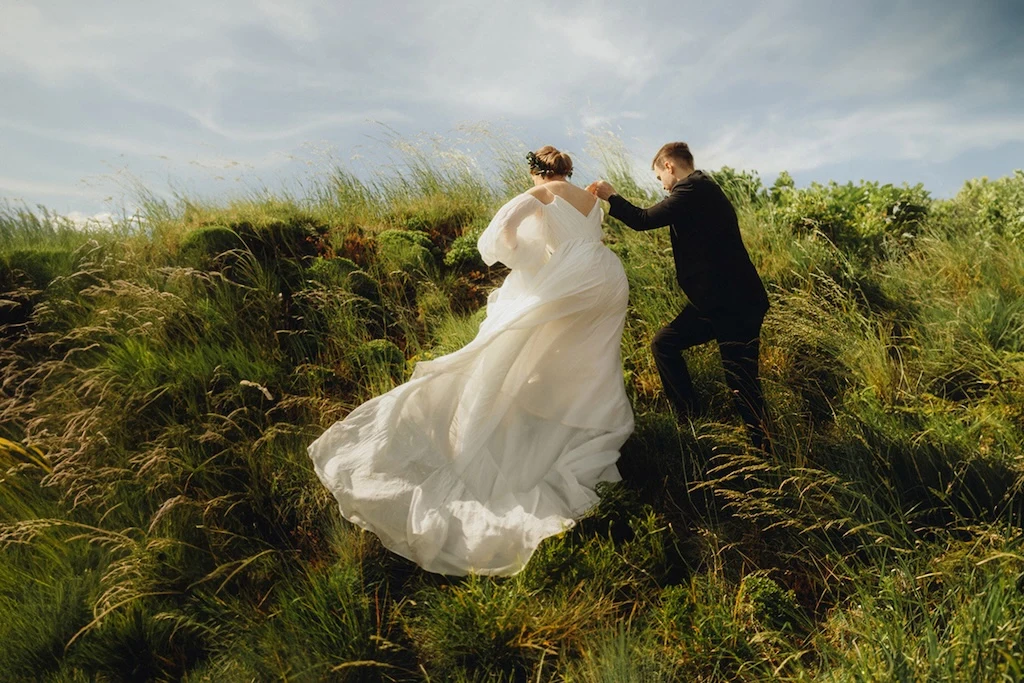
Cover image credit: @sachtikus
Content