How to Cull Photos in Lightroom: A Faster Workflow

Friday, May 1, 2026
Most photographers who cull in Lightroom are slower than they need to be, because a few default settings and ingrained habits quietly add hours to every shoot.
This is what to change.
In this article:
Two Settings to Change Before Your Next Cull
The Preview Lag
Turn On Auto-Advance
Use Flags for Your First Pass. Nothing Else.
The Two-Pass Workflow
Pass 1: Remove the Obvious
Pass 2: Resolve the Undecided
Shortcuts Worth Having as Muscle Memory
When Lightroom Is Not Enough
Two Settings to Change Before Your Next Cull
The Preview Lag
The biggest hidden time cost in Lightroom culling is waiting for previews to render. If you import and start culling immediately, Lightroom loads each RAW file on demand. That pause runs one to two seconds per image on high-resolution files from cameras. Across 2,000 frames, that is close to an hour of dead time.
Building Smart Previews at import eliminates most of this. Check Build Smart Previews under File Handling in the import dialog, or for an existing catalog go to Library > Previews > Build Smart Previews. They are capped at 2560px on the longest edge, which means browsing and flagging at normal zoom becomes fast and lag-free.
Smart Previews also let you cull when your original drive is disconnected, which matters if you work from a laptop with external storage.
If you regularly cull by zooming in at full resolution, build 1:1 Previews at import instead. It takes significantly longer upfront but removes lag at every zoom level.
Turn On Auto-Advance
Press Caps Lock before you start culling. After you flag or rate an image, Lightroom moves automatically to the next one. Pressing the arrow key after every decision sounds trivial until you notice how much it fragments your rhythm across a long shoot. Turn it on and leave it on.
Make sure Library Filters are off (Cmd + L on Mac, Ctrl + L on Windows). If a filter is active and you press X to reject an image, Lightroom hides it from the current view and can lose its place in the sequence rather than advancing cleanly. Starting with filters off keeps Auto-Advance predictable throughout the session.

・・・
Use Flags for Your First Pass. Nothing Else.
Lightroom gives you flags, star ratings, and color labels. The photographers who cull fastest pick one system and ignore the others until they need them.
Flags are the right tool for a first pass. There are only three states: Pick (P), Reject (X), and Unflagged. That constraint is the point. Your only job on a first pass is to make a fast binary call on each frame. You are not ranking anything yet. You are removing the obvious rejects as quickly as possible.
Save star ratings for a second pass on your picks, when you need to tier a 400-image shortlist down to 80 for a client. Do not apply them while you are still looking at 2,000 images.
Color labels work well for delivery categories — separating ceremony, portraits, and reception so editors can work in sections — but they are not a culling tool.
・・・
The Two-Pass Workflow
This structure is where most of the time saving comes from.
Pass 1: Remove the Obvious
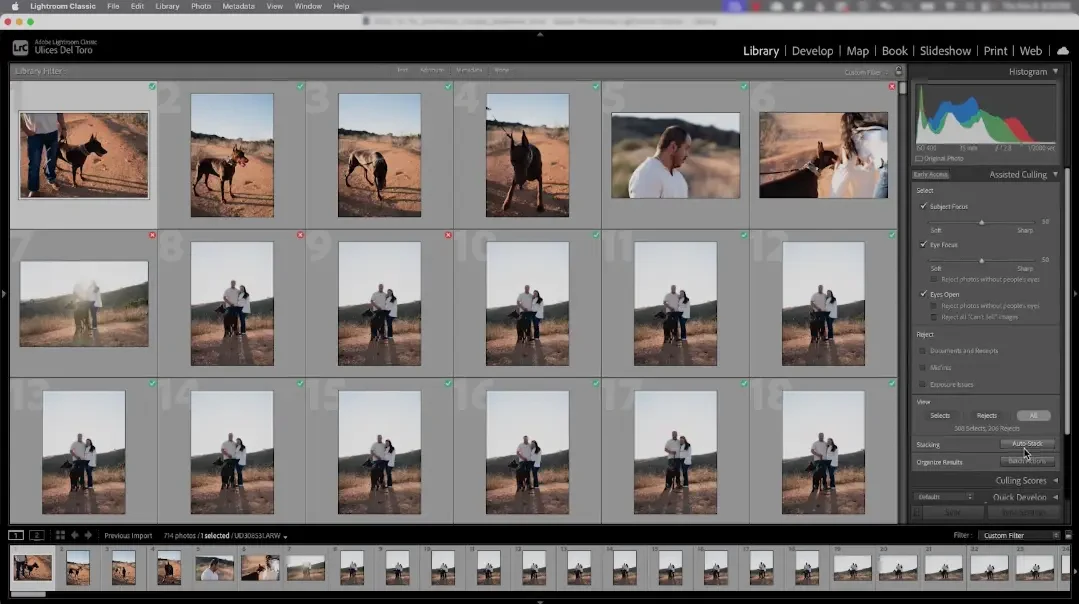
Switch to Grid view (G) with Caps Lock on. Move through the shoot and press X for anything immediately unusable: severe blur, missed focus, closed eyes, accidental frames. Press P for clear keepers. For anything you are unsure about, leave it unflagged and keep moving.
Do not zoom in on this pass. If you cannot read a shot in Grid view, flag it as a pick and reassess in Pass 2, where focus checks belong. Speed is the only goal here.
Pass 2: Resolve the Undecided
Filter to unflagged images using the filter bar at the top of the Library module. These are your undecided frames. Switch to Loupe view (E) and make a final call on each one.
Once that pile is cleared, filter to your picks. Now switch into quality mode — apply star ratings where they help you make the next cut, zoom in on portraits to check focus and expressions, and use Compare view (C) for near-identical frames.
Keeping fast decisions and evaluative decisions in separate passes is what removes the most time from a typical cull.
・・・
Shortcuts Worth Having as Muscle Memory
Action | Shortcut |
Flag as Pick | P |
Flag as Reject | X |
Unflag | U |
Auto-Advance | Caps Lock |
Grid View | G |
Loupe View | E |
Compare View | C |
Zoom in / out | Z |
Next / Previous image | Arrow keys |
Star rating 1–5 | 1, 2, 3, 4, 5 |
Remove star rating | 0 |
Color label Red / Yellow / Green | 6, 7, 8 |
Hide all panels | Shift + Tab |
・・・
When Lightroom Is Not Enough
If you have got this far and still feel like culling is eating too much of your week, the issue is not your technique. It is that Lightroom was built as an editing tool that also does culling, not the other way around.
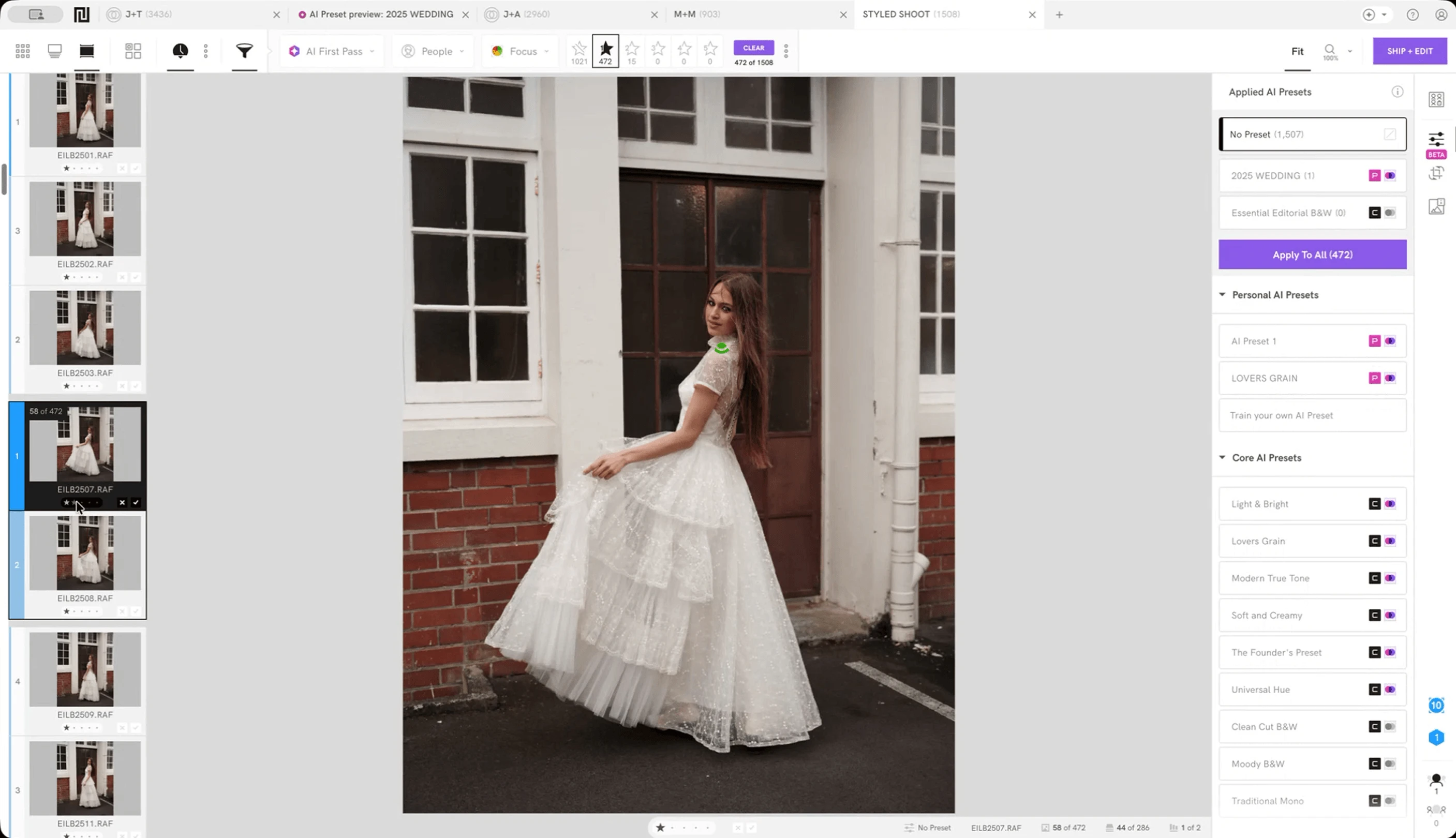
Narrative is built specifically for this part of the workflow, and the difference is felt from the moment you import.

RAW previews load instantly.
Narrative imports thousands of RAW files in seconds with no per-image lag, regardless of file size or camera. The friction that Smart Previews partially offset in Lightroom is not a factor here.The AI does the first cull for you.
Narrative assesses the full shoot upon import — evaluating focus, facial expressions, eye openness, sharpness, and more. It then sorts your shoot into ranked tiers, so you are reviewing the strongest candidates. For group shots and portraits, Scenes View clusters similar frames together and ranks them, which removes the most repetitive and fatiguing part of manual culling entirely.Your selects arrive pre-edited.
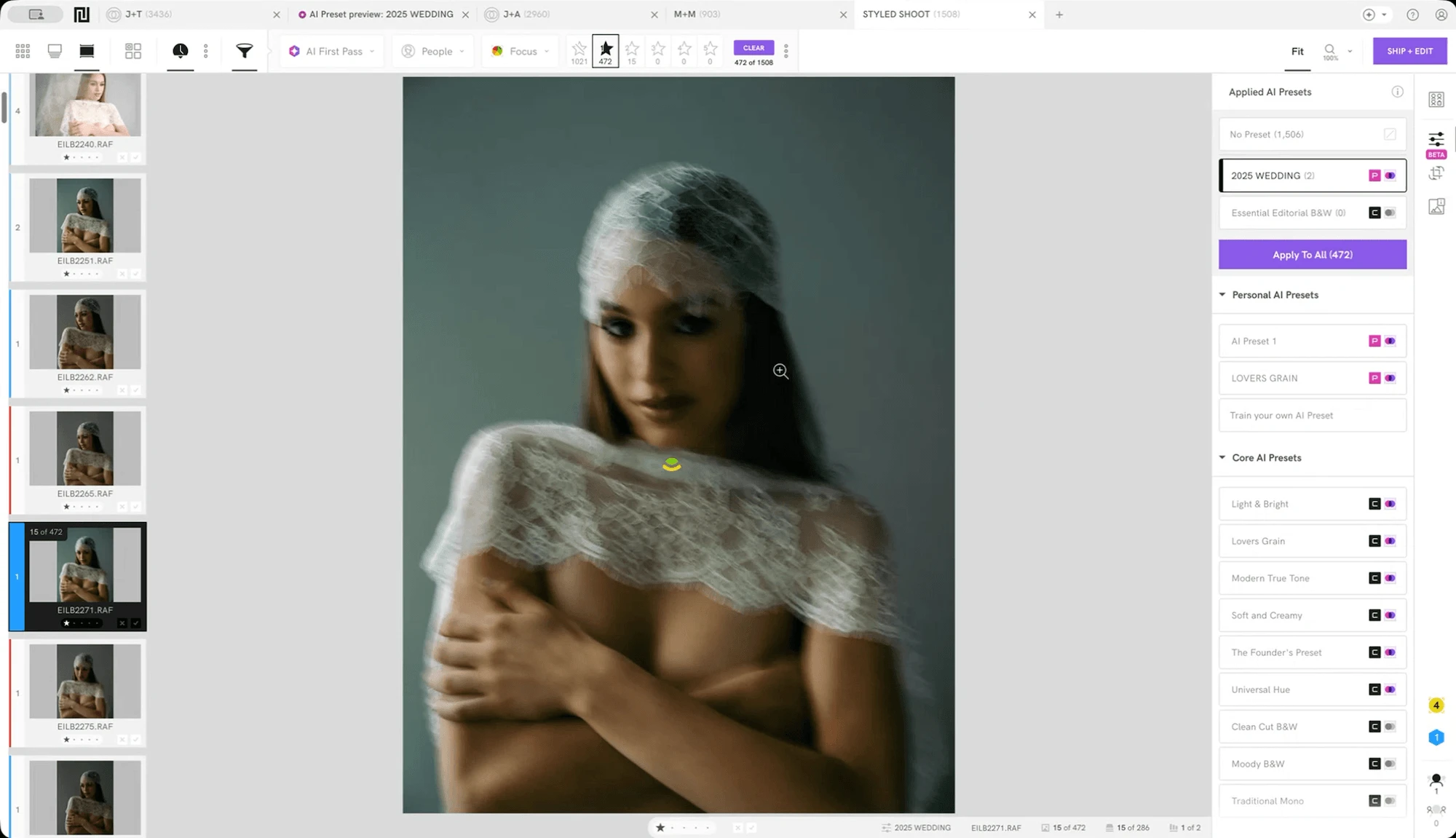
Narrative's Personal AI Presets train on your existing edits and learn your style. When you ship your selects, they arrive in Lightroom or Capture One already graded in your look. Unlike a generic preset, Personal AI Presets adapt to each image's lighting and conditions.One click ships to Lightroom or Capture One.
Your selects go directly into your catalog, with your edits applied, ready to refine. Your existing editing workflow stays exactly as it is.
For a full breakdown of how the AI assessment works under the hood, the guide to AI photo culling covers it in detail.
Try Narrative Free
The free trial includes full access to all culling and editing features, unlimited images, unlimited projects, and direct Lightroom integration, with no credit card required.