Photo Culling for Beginners: A Step-by-Step Checklist for Your First Shoots


Elli Kim Content
Monday, May 18, 2026
You've come home from a shoot with 800 photos on your card and no idea where to start. The session felt good. You know the keepers are in there somewhere. But staring at a folder of thumbnails, every image starts to look the same.
This is where most photographers get stuck — not because culling is complicated, but because nobody teaches it.
This checklist gives you a repeatable process to follow from the moment you get home from a shoot. If you're still fuzzy on what culling actually is, start with What Is Culling in Photography? and come back here when you're ready for the how.
In this article:
Before You Cull
Set Your Criteria Before You Start
First Pass: Clear the Obvious Rejects
Second Pass: Select Your Keepers
After Culling: Before You Hand Off to Editing
The Full Checklist at a Glance
Before You Cull
The mistakes that cost beginners the most time don't happen during culling — they happen in the five minutes before it.
Back up your cards immediately
The industry standard is the 3-2-1 rule: three copies of your files, on two different types of storage, with one stored off-site (or in the cloud). At a minimum, copy your cards to your hard drive and a second location before you format anything.
This is non-negotiable. Once you format a card, that safety net is gone. Don't cull on a card, don't import and immediately format, and don't assume your laptop drive counts as a backup. It doesn't.
Deep dive: 3 Steps to Creating an Easy Photography Backup Workflow
Create a consistent folder structure
Before you import, put your files somewhere logical and repeatable that you will remember in six months.
A simple starting point: Photos / 2026 / 2026-05-15_Smith-Wedding / RAW / Selects / Exports
Use the date first (YYYY-MM-DD) so folders sort chronologically automatically. Include the client name or shoot type so you can find things without opening them. Keep your RAW files, selects, and final exports in separate subfolders from the start.
The habit is worth building before your archive grows too large to reorganise.
Import into your culling tool
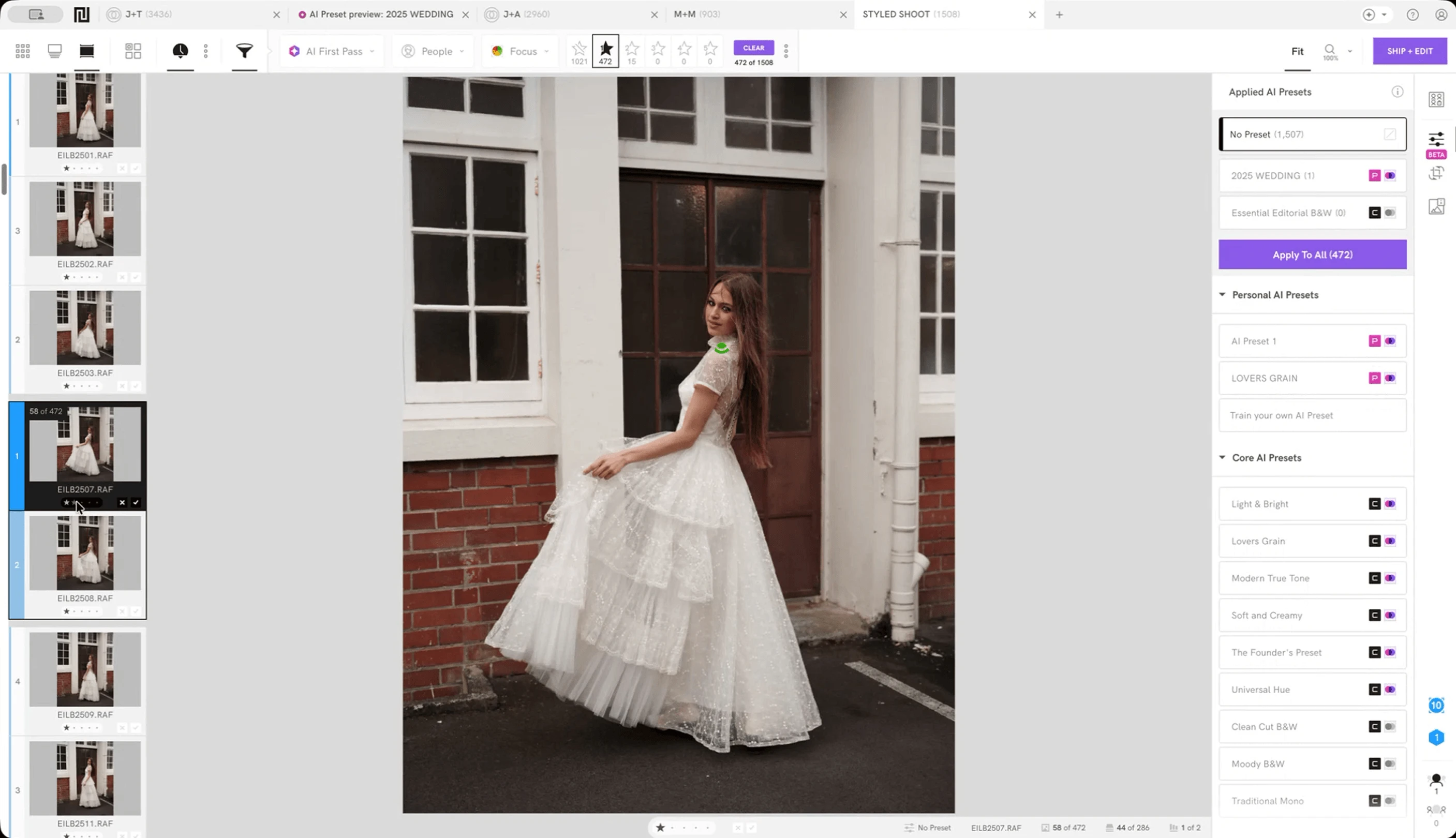
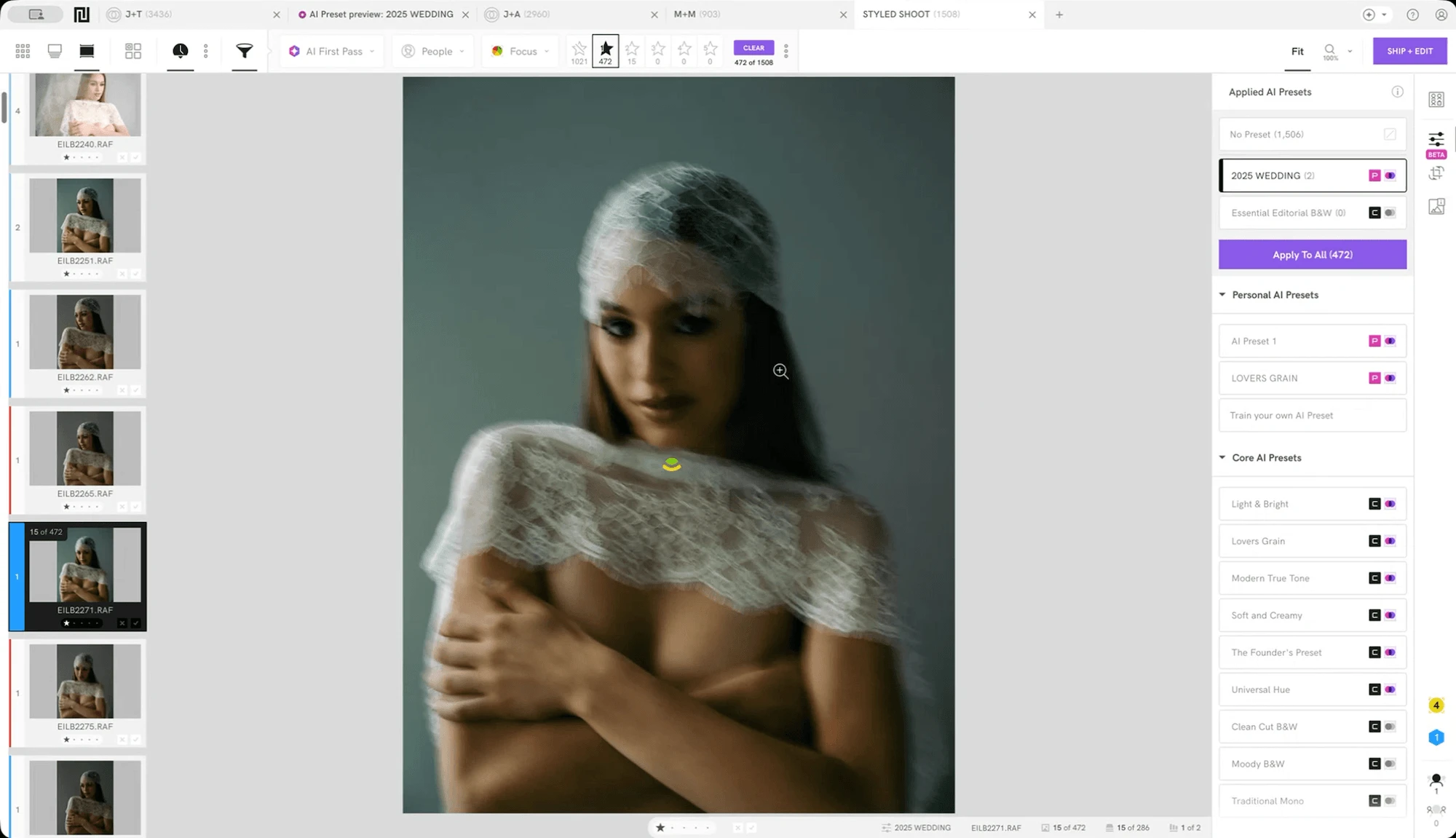
Import your RAW files into wherever you plan to cull. For most beginners that's Lightroom, though dedicated culling tools like Narrative are significantly faster — especially once your shoot volumes grow.
Don't start culling while images are still loading or generating previews. Wait for the import to finish. Reviewing images that haven't fully rendered wastes time and leads to bad calls on sharpness and focus.
Step away for at least 30 minutes
When you've just come home from a shoot, you're still emotionally attached to it. Every image carries the memory of what it felt like to take it. That's not a useful state to cull from. You'll keep images because of how the moment felt, not because of what the image actually shows — and you'll deliver a weaker gallery as a result.
Give yourself some distance before you start. Even 30 minutes helps.
・・・
Set Your Criteria Before You Start
This is the most skipped step in beginner culling workflows, and the one that causes the most inconsistency.
Decide what "keep" means for this shoot
Not every shoot has the same selection criteria. A wedding and a portrait session are different. An editorial shoot and a family session are different. Before you open the first image, define what you're looking for.
A useful starting framework for most shoots:
Technical quality
— Is the focus where it needs to be? Is the exposure workable? Is there unintentional motion blur?
Composition
— Is the subject positioned well? Are there distracting elements in the frame?
Expression or moment
— Does this image capture something real? For portrait and event work, this often outweighs technical imperfection.
Redundancy
— Is this the best version of a shot you already have? If you have eight near-identical frames of the same moment, one of them is the keeper.
For weddings and events, technical quality and redundancy drive most decisions. For portrait work, expression usually matters more than anything else.
Deep dive: What Is Culling in Photography? covers this hierarchy in detail.
Set a target delivery number
Before you start culling, decide roughly how many images you're aiming to deliver. This prevents two of the most common beginner mistakes: delivering too many images and delivering too few.
A rough guide as a starting point:
Portrait session (1 hour): 30–60 selects
Engagement session (2 hours): 60–100 selects
Wedding (8–10 hours): 400–800 selects
These are guidelines, not rules — your style and your client agreements matter more. But having a number in mind before you start keeps the process honest. If you finish your first pass with 1,200 keepers from a two-hour portrait session, the number tells you something went wrong.
Choose your rating system and commit to it
Lightroom offers flags (Pick/Reject), star ratings (1–5), and colour labels. Narrative uses a similar system. Pick one approach and use it consistently — not a different combination on every shoot.
A simple system that works well for beginners:
Flag as Pick
= definite keeper, goes to editing
Flag as Reject
= definite cut, will be deleted
Unflagged
= uncertain, revisit on second pass
Avoid the trap of using too many rating levels. Rating images 1 through 5 sounds useful, but in practice most photographers find themselves with a pile of 3s that never get resolved. Keep it simple until you have a reason to add complexity.
・・・
First Pass: Clear the Obvious Rejects
Your first pass should be fast. You're not selecting keepers yet — you're removing the images that have no chance. Move quickly. If an image makes you hesitate for more than a couple of seconds, leave it and come back.
Remove out-of-focus shots
Check that focus landed where it was intended. A blurry background is often intentional; a blurry subject almost never is. Don't zoom in and pixel-peep every image at this stage — you're looking for clear failures, not microscopic imperfections.
Remove closed eyes
For portrait and event work, closed eyes are one of the most common rejects. Scan faces quickly. If you're working in a dedicated culling tool, features like Narrative's Close-ups Panel show every face in a frame at once — which is far faster than zooming in manually on each image.
Remove technically unrecoverable exposures
Severely overexposed or underexposed images that can't be saved in post. Note: "can't be saved" is doing a lot of work in that sentence. Modern RAW files have significant recovery latitude, so don't reject an image just because it looks dark on screen. Reject images where the exposure is so far gone that no amount of editing will fix it.
Remove test shots and accidentals
The shots you took while adjusting settings. The ground. The inside of your lens cap. The back of someone's head mid-turn. These are easy and should take no thought — reject and move on.
Cull duplicates down to one
When you've shot a burst or a series of near-identical frames, compare them and keep the strongest one. This is where most beginners lose significant time — reviewing every image in a sequence individually instead of grouping them and making a single decision.
If you're in Lightroom, use Survey View (N) to compare multiple images side by side. In Narrative, the Scenes View groups similar images automatically so you're deciding across a sequence rather than image by image.
The goal at the end of your first pass: you should have cut at least 30–40% of the shoot. If you haven't, you're probably being too cautious. Erring towards keeping is a natural beginner instinct — fight it.
・・・
Second Pass: Select Your Keepers
Now that the obvious rejects are gone, you're working with a smaller, stronger set. This pass requires more judgment.
Compare similar frames and choose one
Go through the remaining images and make definitive calls on the sequences you left open in the first pass. Pick one, reject the rest. Don't keep two near-identical frames because you couldn't decide — that decision doesn't get easier later, and it means your client gets duplicates.
Prioritise expression over technical perfection
For portrait and event work especially: a slightly soft image with a genuine expression will almost always outperform a technically perfect image where nobody looks real. Train yourself to feel this instinctively. The technically perfect image is the safe choice; the expressive one is the right choice.
This doesn't mean accepting clearly out-of-focus images. It means that when you're choosing between two technically similar frames, expression breaks the tie.
Check your count against your target
Partway through your second pass, check how many images you've selected against the target you set before you started. If you're significantly over, you need to be more decisive in the remaining images. If you're significantly under, revisit your rejects — you may have been too aggressive.
At the end of your second pass, you should have a clean set of selects that you'd be willing to hand to a client. If there are still images you're unsure about, a short third pass to resolve the uncertainties is fine. But resist the urge to endlessly revisit — at some point the marginal image stays or goes and you move on.
Deep dive: The Most Popular Photo Culling Tools — if you're still using Lightroom for culling and finding it slow, this article explains what else is available and what the tradeoffs are.
・・・
After Culling: Before You Hand Off to Editing
Do a final scan of your rejects before deleting
Before you permanently delete any images, do a quick scan of your reject pile. You're looking for images you may have rejected by mistake — a genuinely strong frame accidentally flagged in a fast first pass. This takes five minutes and has saved more than a few photographers from an uncomfortable client conversation.
Don't dwell here. If an image doesn't give you pause when you see it in the reject pile, it stays rejected.
Export your selects to Lightroom or Capture One
Once your culling session is done, ship your selects to your editing software. In Narrative, this is a single step — your flagged images transfer directly into Lightroom or Capture One with your ratings preserved.
If you're working in Lightroom itself, your selects are already in your catalogue. Create a collection for the shoot's keepers so you can find them easily without filters.
Archive the full shoot — don't format your cards yet
Keep your RAW files and your memory cards intact until the gallery has been delivered and the client has confirmed receipt. Cards are cheap insurance. The one time you format too early and something goes wrong is the time you'll wish you hadn't.
Once delivery is confirmed, archive the full RAW shoot to your long-term storage and format your cards for the next shoot.
Deep dive: A Photographer's Guide to the Best Hard Drives Setup
・・・
The Full Checklist at a Glance
Before you start
Back up cards to at least two locations
Set up a consistent folder structure
Import into your culling tool
Step away for at least 30 minutes
Set your criteria
Define what "keep" means for this shoot
Set a target delivery number
Choose your rating system
First pass
Remove out-of-focus shots
Remove closed eyes
Remove unrecoverable exposures
Remove test shots and accidentals
Cull each burst sequence down to one
Second pass
Compare remaining similar frames and decide
Prioritise expression over technical perfection
Check your count against your target
After culling
Scan rejects before deleting
Export selects to Lightroom or Capture One
Archive the full shoot — keep cards until delivery is confirmed
This checklist gives you a process. What it can't do is make the process fast — at least not yet.
Manual culling through 800 images takes time regardless of how organised your system is. Most photographers report spending one to two hours culling a typical wedding gallery. As your shoot volume grows, that adds up quickly.
That's where purpose-built culling software earns its place. Tools like Narrative use AI to flag blurry images, detect closed eyes, and group similar frames automatically, so you spend your time on genuine selection decisions. If you're regularly culling more than a few hundred images per shoot, it's worth trying. The free trial covers full projects with no credit card required.
But first: run this checklist on your next shoot manually. Understanding the process before you automate any part of it makes you a better photographer — and a faster one.
Content