Download Narrative Select
Your Mac download has started. On Windows? Download the Windows installer.
Didn’t start? Download for Mac again or check system requirements.
Lock in for 12 months and get 30% off! See Pricing
Your Mac download has started. On Windows? Download the Windows installer.
Didn’t start? Download for Mac again or check system requirements.
Updating from an older version? Quit Narrative before you run the installer. Read the full install guide
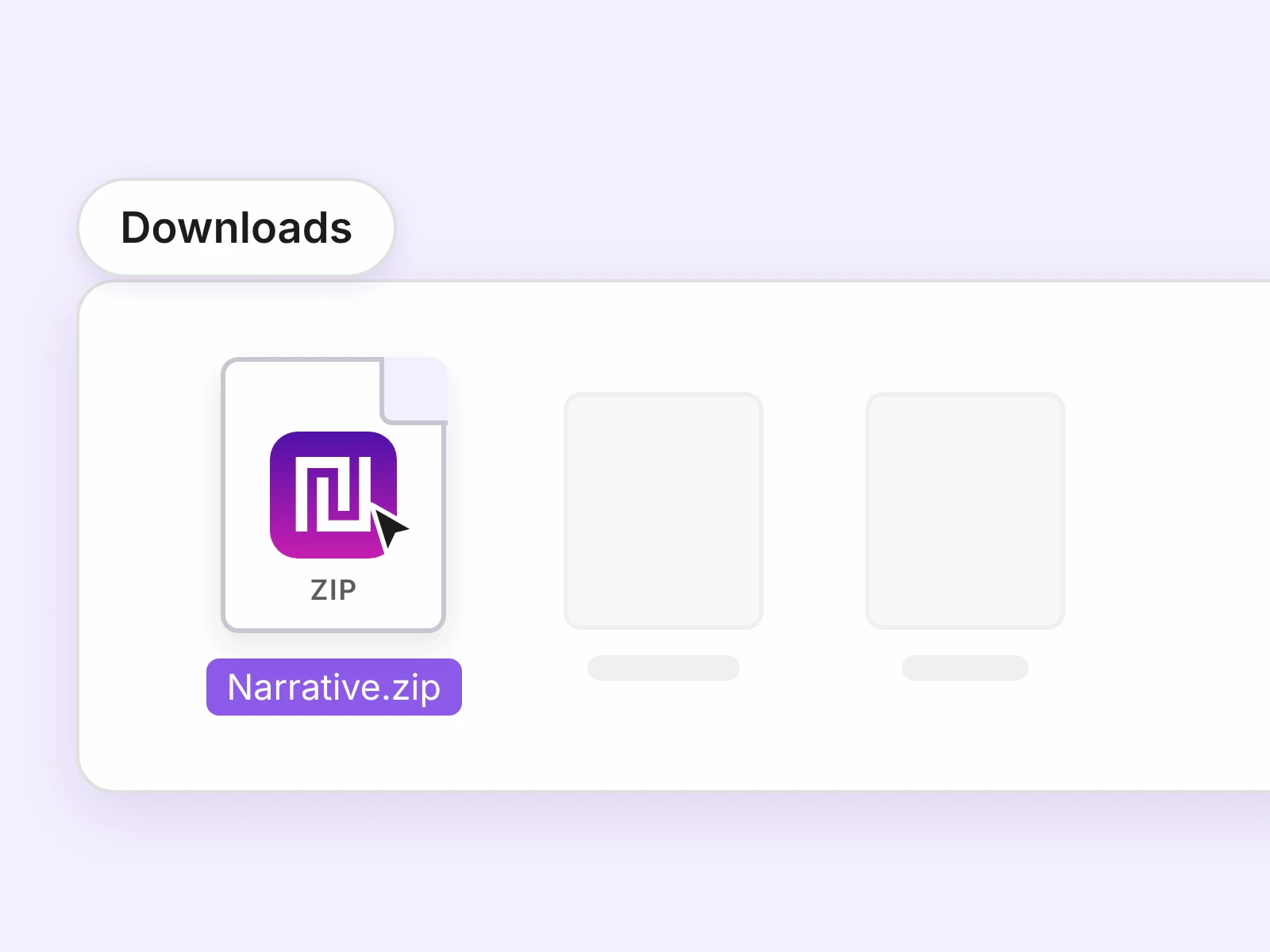
Double-click the Narrative .zip file in your Downloads folder to unzip it.
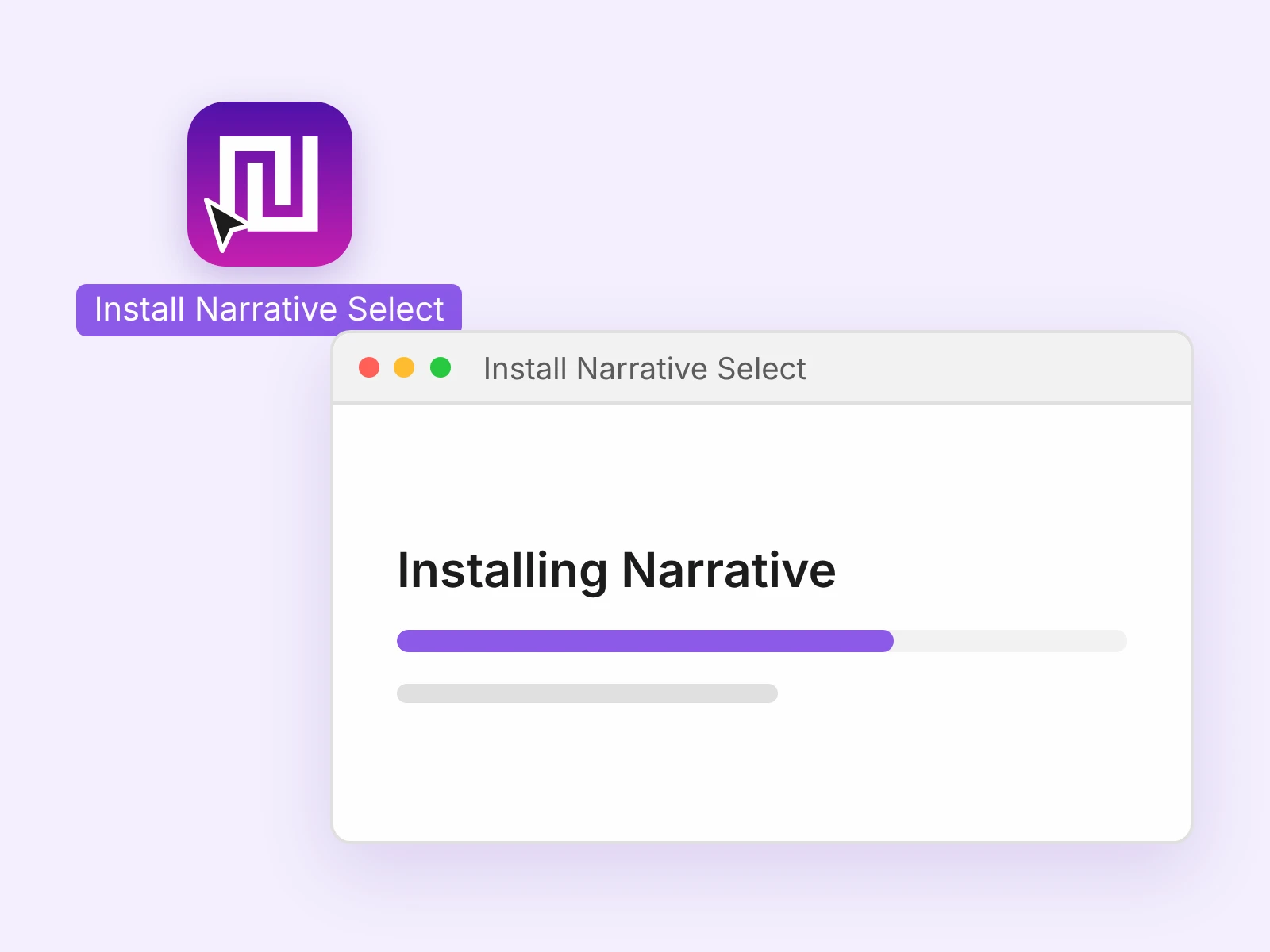
Double-click Install Narrative Select. It installs Narrative for you.
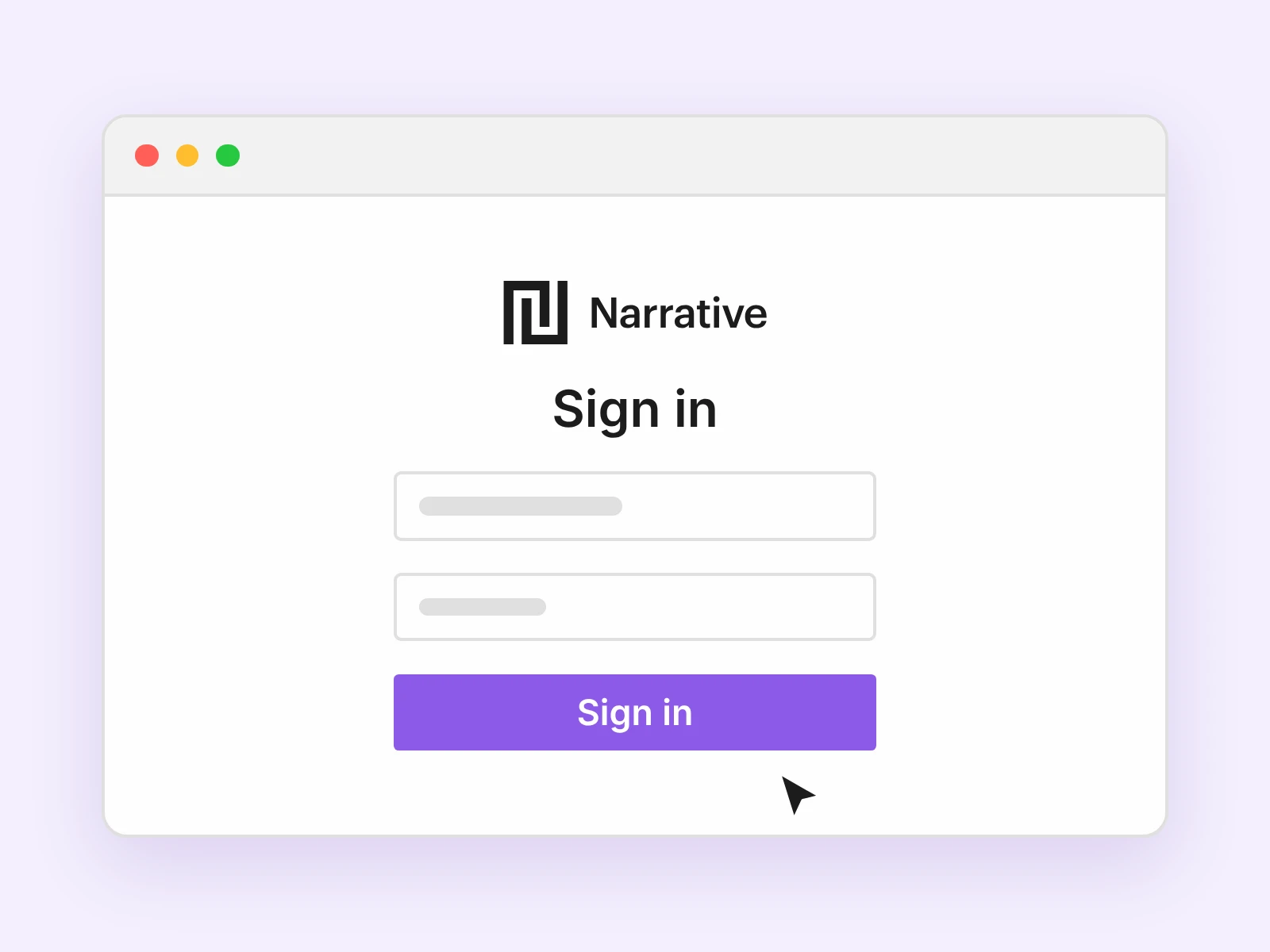
Narrative opens when the installer finishes. Sign in with your Narrative account.
You only need to do this once. Narrative installs future updates automatically.
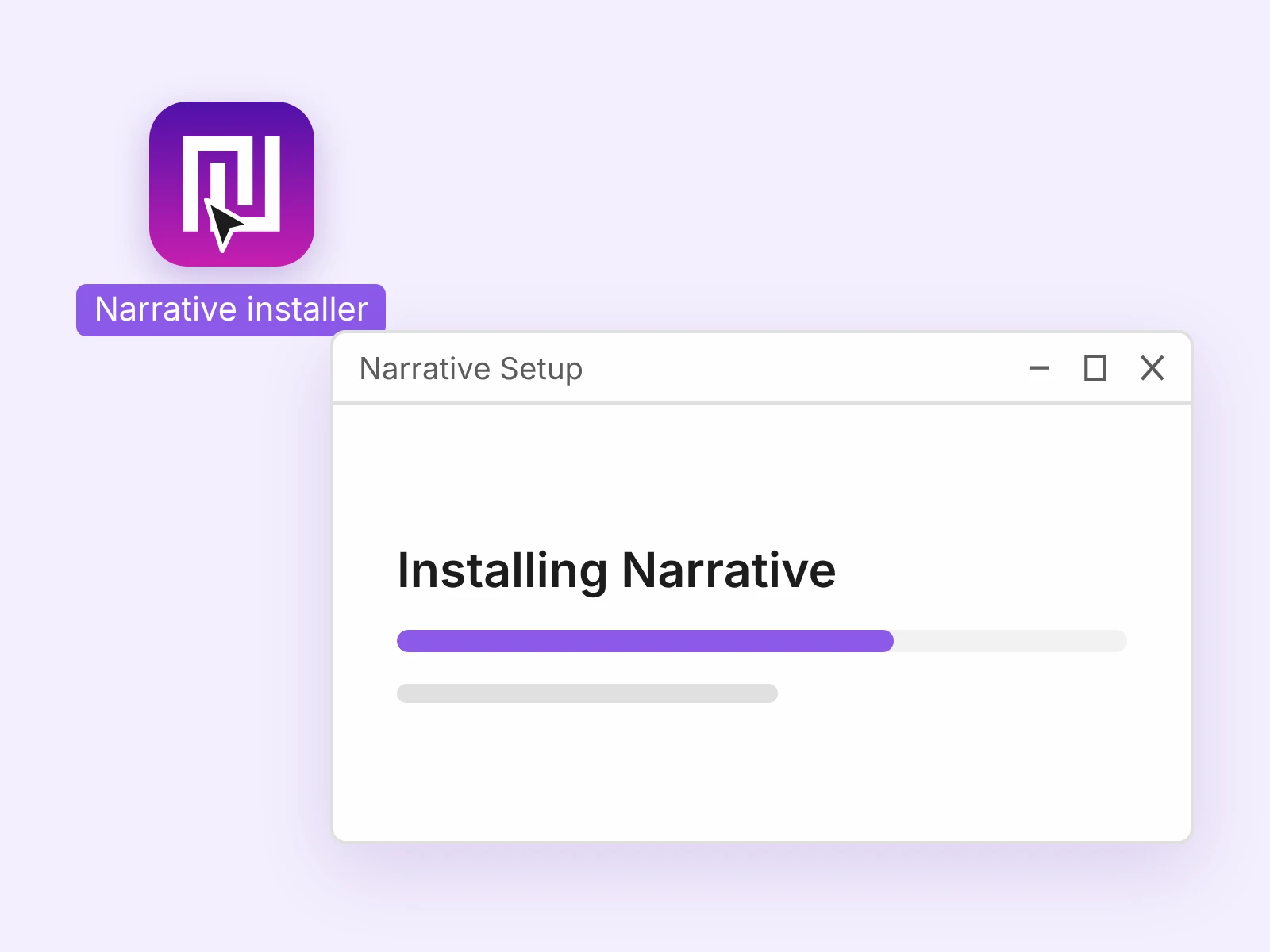
Double-click the Narrative installer (.exe) in your Downloads folder.
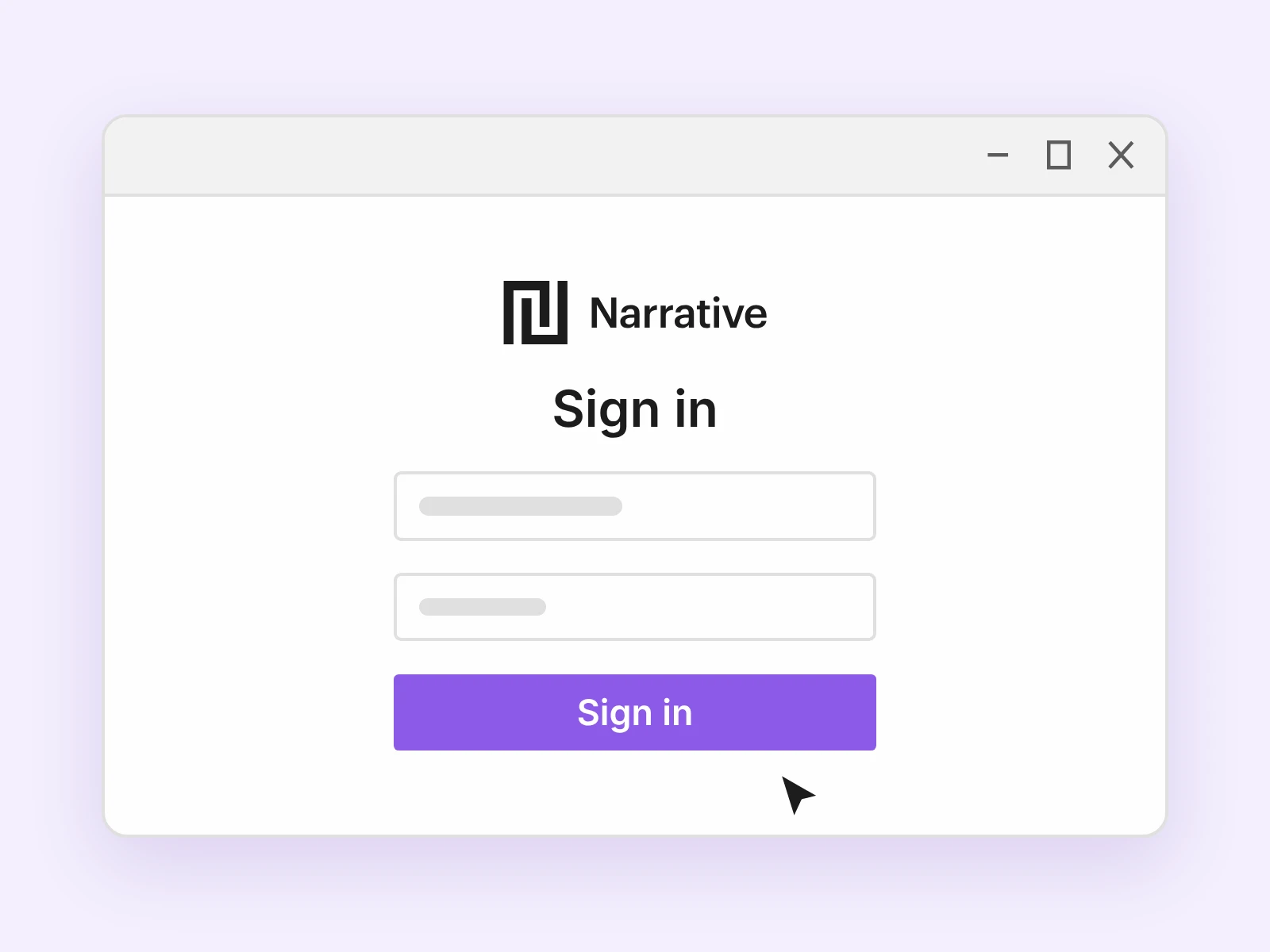
Narrative opens when the installer finishes. Sign in with your Narrative account.
Get set up, find help and see what’s new.
Set up your first project, step by step.
Guides, troubleshooting and support.
See what’s new in Narrative.
Workflow ideas from the Narrative blog. Browse the blog
Download Narrative from this page and run the installer, the same way you installed it the first time. On a Mac, quit Narrative before you run the installer. After that, Narrative installs future updates automatically.
Yes. Narrative works on Windows 11 and macOS 12 or later. Check the full system requirements.
Your photos and ratings are safe. Narrative doesn’t store or delete your photos. It saves star ratings, color labels and tags in XMP files next to your photos, so create a new project from the same folder and carry on where you left off.
No. To cancel your plan, go to your Narrative account.